
What to Do When a YouTube Video Has No Transcript
September 8, 2026 · 6 min read
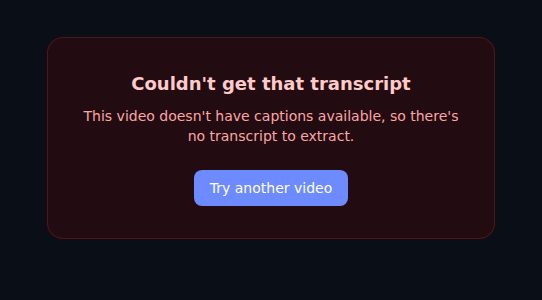
Sometimes you paste a link and get "This video doesn't have captions available, so there's no transcript to extract." The tool is not broken and neither is the link. It means YouTube has no caption track for that video, and a transcript tool that works from captions has nothing to work with. This guide is about why that happens and what you can do instead, in order of effort.
The four reasons
The creator turned captions off. YouTube lets uploaders disable automatic captions on a video, and some do, usually because the automatic ones were embarrassing. This is the most common reason on smaller channels.
The video is too new. Automatic captions are generated after upload, and on a long video or a busy day that can take hours. A video posted twenty minutes ago often has no track yet.
The language is not supported. YouTube's automatic captions cover a few dozen languages. A video in a language outside that set, or one the recognizer could not identify, gets no automatic track unless the creator uploads one.
There is no usable speech. Music videos, ambient recordings, gameplay with no commentary, and videos where the audio is mostly noise produce no captions because there is nothing to transcribe. Some music videos do have lyric captions, but most do not.
Two other cases look similar and are different: private and age-restricted videos. Those may have captions, but they cannot be fetched without signing in, and LinkTranscript does not sign in to YouTube. The error message names these separately.
Shorts, live streams, and premieres
Three kinds of video look like the four cases and are not. A Short is an ordinary video and usually has an automatic track; both the shorts link and the watch link work. A live stream has no captions to fetch while it is live, and after it ends the replay is processed like a new upload, so a long stream can take a day to get its automatic track. A premiere is an uploaded video that has not been released yet, and its captions cannot be read until it goes public.
Check on YouTube itself
Open the video on YouTube and click the CC button on the player, or the gear icon and then Subtitles. If the menu lists a language, a track exists and the transcript should load; try the link again, and if it still fails, wait a minute and retry, since a fresh track can take a moment to propagate. If the menu shows nothing or only "Unavailable," there is no track, and you are in one of the four cases above.
On the desktop site, the three-dot menu under the video sometimes has a "Show transcript" item. If it is there, the transcript exists and a tool can read it; if it is missing, it does not.
Option one: wait
If the video is less than a day old, come back tomorrow. Most automatic tracks appear within a few hours. This costs nothing and is the right answer more often than people expect.
Option two: ask the creator
Enabling automatic captions is one checkbox in YouTube Studio, and uploading corrected ones is not much more. A polite comment or email saying you would like to read the video, and that captions also help viewers with hearing impairments, gets a yes from most small channels. Creators who care about search and accessibility often did not realize the setting was off. If the channel is a university, a company, or a public body, they may have an accessibility obligation to caption on request.
Option three: find another upload
Talks, lectures, interviews, and news segments are often uploaded more than once: by the event organizer and by the speaker, by the network and by a clipping channel, or by the same organization on two channels. Search for the title plus a distinctive phrase. A second upload frequently has captions when the first does not, and it is the same content.
Option four: transcribe the audio yourself
For a video that matters and has no captions anywhere, speech-to-text software on your own machine is the fallback. Free, local options exist for every platform (the open-source Whisper models are the usual starting point), and paid services will do it faster with speaker labels. Two cautions. First, you need the audio, and downloading a YouTube video to get it may be against YouTube's terms of service; check them, and prefer sources that allow it. Second, you are making a transcript that did not exist, so it should be treated as a draft and checked before anything is quoted from it.
LinkTranscript does not do this step. It reads the caption track YouTube already has and does not download video or audio, which is why it is fast, free, and safe to use on any public video. When there is no track, the honest answer is no transcript, and the tool says so instead of inventing one.
If you are the creator
Turn automatic captions on in YouTube Studio under the video's Subtitles tab, then spend the length of the video correcting them; names and numbers are where the recognizer fails. Every viewer who reads instead of watches, every search engine, and every transcript tool downstream benefits at once, and a corrected track is one of the cheaper ways to make a video findable.
Try it on a video
Paste a YouTube link and get a clean, exportable transcript in seconds.