
How to Use a YouTube Transcript with ChatGPT, Claude, or Gemini (Without Getting Nonsense Back)
September 6, 2026 · 7 min read
About four out of five people who use LinkTranscript arrive from ChatGPT. They asked it something about a video, it could not watch the video, and it sent them here to get the words. Then they paste the words back. That round trip works well when the transcript is clean and the prompt is specific, and it produces confident nonsense when either is missing. This is a guide to the version that works.
The assistant cannot watch the video
None of the major assistants can play a YouTube video and listen to it. When you paste a YouTube link into ChatGPT and ask what the video says, it will usually fetch the page, read the title and description, and then produce a summary that sounds plausible and is often wrong, because the description is not the content. Some assistants will admit they cannot access the video; some will not. Either way, the fix is the same: give them the transcript.
A transcript is text, which is the one thing every assistant is good at. An hour of speech is about 9,000 words, which fits inside the context window of any current model with room to spare, so for most videos you can paste the whole thing at once.
Step one: get a transcript worth pasting
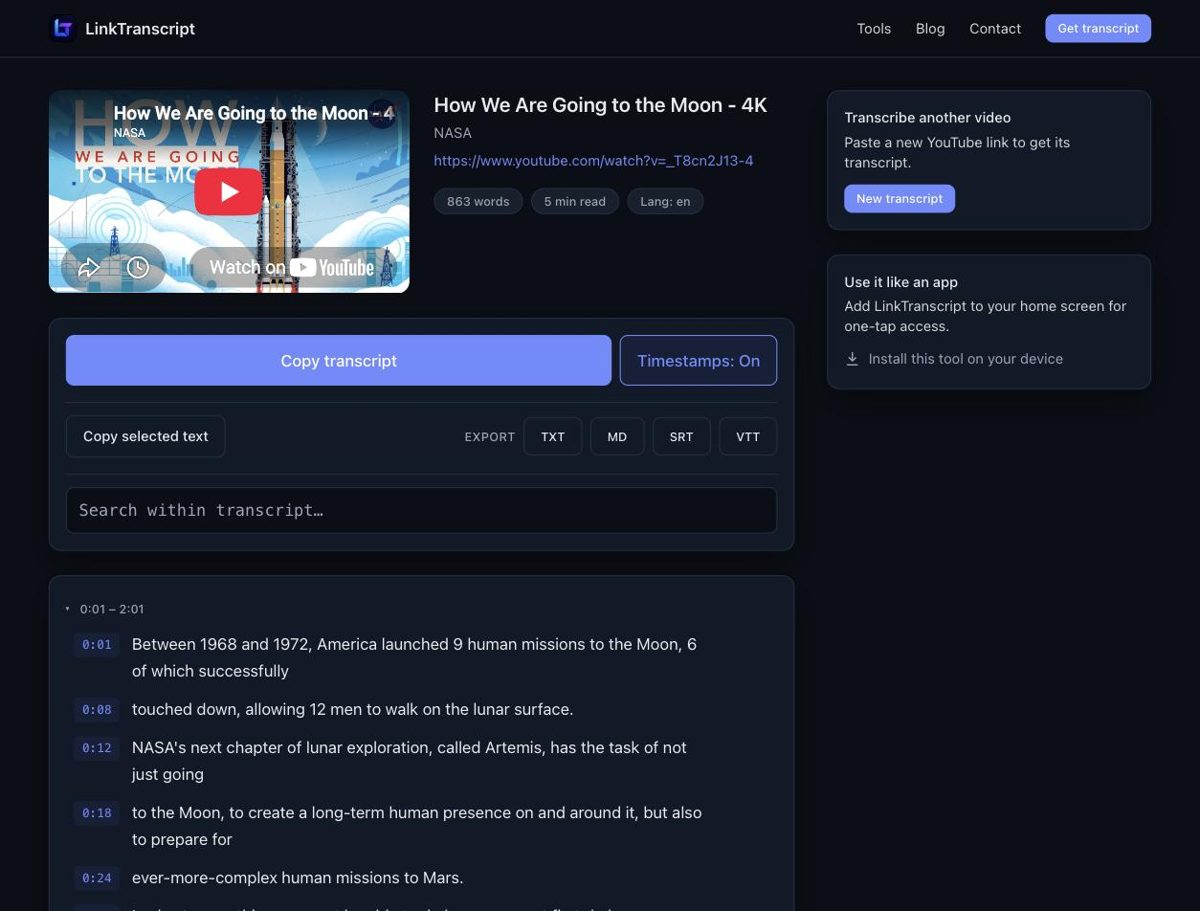
Paste the video link on the LinkTranscript home page. A second or two later you have the caption track laid out with timestamps, a word count, and the language. Two things to look at before you copy.
First, is it the uploaded track or the auto-generated one? Uploaded captions were written or corrected by a person and read like an edited transcript. Auto-generated captions come from speech recognition and have almost no punctuation, so the text runs together and names can be mangled. Both work for summarizing; the auto-generated kind is where you should be more careful about verifying specifics afterward.
Second, timestamps on or off? For a short video, leave them on: the assistant can then cite the moment a claim was made, and you can click straight to it. For anything over half an hour, turn them off before copying to keep the text compact. The toggle sits next to the Copy button.
Step two: copy the prompt with the transcript attached
Under the search box on every transcript page there is a Prompts menu. Pick Summary, Key Takeaways, Study Guide, Bullet Notes, or one of the others, and it copies the prompt and the transcript together, with the video title, as one block of text. Paste that into ChatGPT, Claude, Gemini, or anything else and send. The Open in ChatGPT button does the same thing for ChatGPT specifically: it copies the transcript and opens a new chat with a short instruction already typed, so all you do is paste.
You can also write your own prompt, which is worth doing once you know what you want. The prompts below are the ones that hold up.
Four prompts that work
For a quick read: "Summarize this transcript in three short paragraphs. Lead with the main argument, then the two or three strongest supporting points, then anything the speaker said they were unsure about." The last clause matters; without it, assistants tend to flatten a speaker's hedges into confident claims.
For a decision: "List every recommendation the speaker makes, one per line, with the reasoning given for each. If two recommendations conflict, say so." This is the prompt for a product review, a how-to, or advice content, where what you want is the list of things the person told you to do.
For study or research: "Give me ten key takeaways as a numbered list. Each should be one complete sentence I could quote, followed by the timestamp where it appears." Only works with timestamps on. The payoff is that every takeaway is one click from the source.
For checking a claim: "Does the speaker say anything about [topic]? Quote the exact lines, with timestamps, and do not paraphrase." This turns the assistant into a search tool that understands synonyms, which is more useful than it sounds when you half-remember what was said.
Long videos: summarize in parts
Most assistants take an hour-long transcript in one paste. Past that, or for a lecture series, split it. On the transcript page, highlight the section you want (twenty to thirty minutes of it) and click Copy selected text, which grabs just that passage. Summarize each part, then paste the summaries together and ask for a summary of the summaries. The two-level version is more accurate than one enormous paste, because the assistant is never asked to hold two hours of detail in mind at once.
How to tell when the answer is wrong
Assistants are worst at three things with transcripts: numbers, names, and the speaker's degree of confidence. A figure of 5.2 million becomes 52 million; a name the captions spelled phonetically becomes a different person; "this might work" becomes "this works." The check is cheap: for anything you plan to repeat, go back to the transcript, search for the phrase, click the timestamp, and listen for ten seconds. If the assistant gave you timestamps, this takes about as long as reading the sentence.
A second habit: ask "what did the speaker not say?" after a summary. It surfaces places where the assistant filled a gap with general knowledge instead of the transcript, which is the most common way a video summary drifts from the video.
What not to paste
Do not paste the YouTube link and hope. Do not paste the video description as if it were the transcript. And if the video has no captions, there is no transcript to paste; LinkTranscript will say so rather than invent one, and the assistant should not be asked to invent one either. The what-to-do-when-there-is-no-transcript guide covers the options.
Try it on the next video someone sends you: paste the link, pick Key Takeaways from the Prompts menu, and paste the result into the assistant you already use. It takes less time than the video's intro.
Try it on a video
Paste a YouTube link and get a clean, exportable transcript in seconds.