
Reading Instead of Watching: Transcripts as an Accessibility Feature
September 7, 2026 · 7 min read
Most of the guides on this site treat a transcript as a shortcut: read in a quarter of the time, search instead of scrubbing, paste into an assistant. For a lot of readers it is the only way in. This guide is about them, and about what a transcript has to get right before it does the job.
Who is reading instead of watching
The World Health Organization puts the number of people living with some degree of hearing loss at about 1.5 billion. Captions serve them while the video plays. A transcript serves them when they want the whole thing at once, in their own order, at their own pace, with the ability to search it.
Screen reader users are a second group. A screen reader such as VoiceOver, NVDA, or JAWS reads text on a page aloud or sends it to a braille display, and it cannot read speech inside a video. A transcript turns an hour of talk into something a screen reader can move through by heading, by paragraph, by sentence, or letter by letter.
Then there is everyone for whom the audio is the problem rather than the ear. Non-native speakers who read English well and follow fast spoken English less well. People with attention or processing differences who lose the thread when speech goes by at conversational speed and cannot be re-read. People with migraines or motion sensitivity, or a screen that has to stay dark. And the practical cases: a library, a shared office, a train, a phone at 3 percent, a connection that will not stream.
For all of them, the transcript is the content.
What a transcript needs before it is usable
Words in the right order are the floor. Usable is higher, and four things get it there.
Punctuation. An uploaded caption track has it; an automatic one has almost none, so sentences run together and a screen reader reads a paragraph as one breathless sentence. If the video you need has only automatic captions, plan to add punctuation before handing the text to someone who will listen to it. Pasting into a word processor and reading through once is the low-tech way. An assistant with the instruction "add punctuation and paragraph breaks, change no words" is the fast way; without the change-no-words clause, assistants tidy the speaker's wording along with the commas.
Speaker labels. Captions on YouTube rarely say who is talking. In an interview or a panel, a transcript without names is a wall of alternating opinions. Add them at the top of each turn, even as "Host:" and "Guest:".
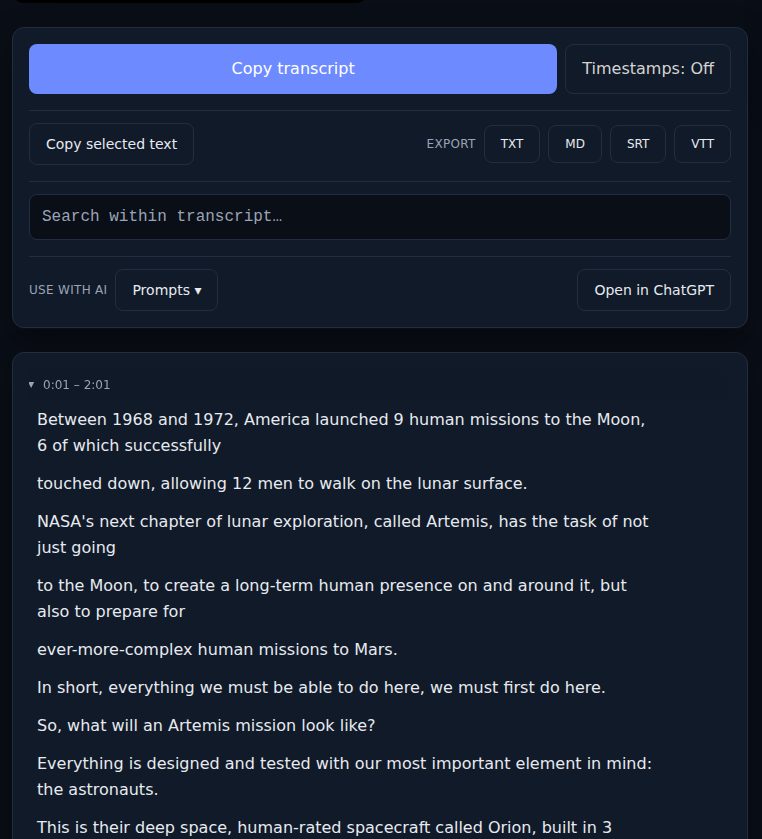
Paragraphs. Automatic captions arrive in three-second cues. LinkTranscript shows one cue per line and, when you export as plain text with timestamps off, joins them into prose, but topic breaks are still yours to add. A heading every few minutes of speech makes the page navigable by heading for a screen reader and skimmable for everyone else.
Timestamps, kept. For a reader who can partly use the audio, a timestamp beside each line is the bridge back to the video: click it and the player jumps there. Keep them in the version you share unless the reader asks for prose.
What captions leave out
A caption track is the speech. It is usually not the sound. Music, laughter, a door, a tone of voice, the pause before an answer: professional captions describe these in brackets, and automatic ones skip them. A transcript built from automatic captions therefore reads flatter than the video felt, and a reader relying on it deserves to know that.
Captions also skip what is on the screen. A slide with the key chart, code typed into a terminal, a product held up to the camera, a text overlay that carries the joke: none of it is in the track. When a video leans on visuals, the transcript needs a line saying so ("the speaker shows a chart of monthly sales here") or a link to the slides. This is the same gap that audio description fills for blind viewers, and it is why WCAG treats a full text alternative for video as its own success criterion (1.2.8) instead of assuming captions cover it.
And captions can be wrong in ways that matter more to someone who cannot check the audio. A mis-heard drug name, a dropped "not," a number off by a digit. The auto-generated versus uploaded guide lists the common error types. If the transcript is going to a reader who cannot verify against the sound, verify it for them where it counts.
Sharing a transcript respectfully
The creator's side first. Captions belong to whoever made the video. Sharing a transcript with a colleague or a student who needs it is ordinary fair use; posting the whole thing publicly is republishing someone's work. Link to the video, credit the creator, and if you plan to distribute the text widely, ask. Many creators will say yes, and some will add proper captions once they learn people need them, which fixes the problem at the source.
The reader's side. Say which track it came from. "Automatic captions, lightly punctuated, not checked against the audio" is one sentence and it sets expectations correctly. Keep the source link at the top; the Markdown and TXT exports from LinkTranscript put the title, link, language, and date there for you. And send it in a format the reader's tools can handle: plain text or Markdown for screen readers, never a screenshot, and never a PDF of a screenshot.
If you are the creator
The shortest version of all of this is: upload captions. YouTube lets you edit the automatic track in the Subtitles section of YouTube Studio, and an hour of correction turns a video into something a much larger audience can use. Add speaker names in the caption text where more than one person talks. Describe the sounds that matter in brackets. Every transcript tool, this one included, is downstream of that decision, and it is the one place where a fix reaches every viewer at once.
Try it on a video
Paste a YouTube link and get a clean, exportable transcript in seconds.