
How to Get a Transcript from Any YouTube Video (2026 Guide)
June 25, 2026 · 7 min read
If you have ever needed the exact words from a YouTube video, to quote a source, study a lecture, or turn a talk into an article, you know that watching the whole thing and typing notes is slow. Most YouTube videos already carry their words as a caption track, and there are four ways to get that text out. This guide covers each one, what it is good for, and where it falls short.
Method 1: paste the link into a transcript tool
The fastest way, and the one that works the same on a phone and a laptop. Copy the video's URL from the address bar or the Share button, paste it into the box on the LinkTranscript home page, and click Get Transcript. A second or two later the transcript is on the page, with the video embedded beside it, a word count, an estimated reading time, and the caption language.
Every line has a timestamp. Click one and the player jumps to that moment, which is how you check a quote against the audio or find the part you came for. The Timestamps toggle turns them off when you want prose. The search box filters the transcript as you type and shows how many times a word occurs. Copy transcript takes the whole thing; select a passage with the mouse and Copy selected text takes only that. Export gives you a file in TXT, Markdown, SRT, or VTT, with the video title, source link, language, and date at the top so the file always says where it came from.
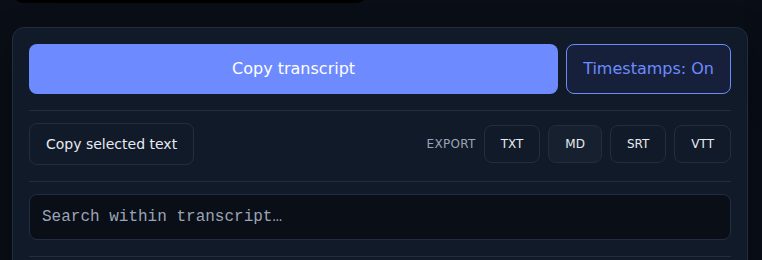
There is no account, no install, and no limit that a person reading transcripts will reach; the limits exist to stop scripts. The trade-off is that the tool can only give you what YouTube has. If a video has no caption track, there is no transcript, and it says so.
Method 2: YouTube's built-in transcript panel
YouTube has a transcript feature on the desktop site, though it is buried. Open the video, click the "...more" link in the description under the title, and choose "Show transcript." A panel opens beside the video with the timestamped text, and clicking a line seeks the player, much like a transcript tool does. The panel's own menu has a toggle for timestamps, and when a video has several caption tracks there is a language menu at the bottom.
What it lacks is any way to get the text out cleanly. You can select and copy from the panel, but the timestamps come along on their own lines, long videos mean a lot of scrolling to select, and there is no export. It is also desktop only; the mobile app and the mobile site do not have it. For reading a short video while it plays, the panel is fine. For anything you want to keep, search, or paste somewhere, you will spend more time cleaning the paste than the transcript tool took.
Method 3: a subtitle file for a video editor or player
If the transcript is going into Premiere, DaVinci Resolve, Final Cut, a web player, or a course platform, you want a caption file rather than text. Those tools expect SRT or VTT: a list of cues, each with a start time, an end time, and a line of text. On LinkTranscript, the SRT and VTT buttons in the Export row produce these directly from the link, using YouTube's own cue timings, so the captions line up with the video as YouTube plays it. The SRT versus VTT guide covers which format each tool wants and how to fix the usual timing and character problems.
Method 4: YouTube Studio, for your own videos
If the video is yours, YouTube Studio has the captions themselves. Open the video in Studio, go to Subtitles, and each track has a menu with a download option in SBV, SRT, or VTT. This is also where you edit the automatic captions, which is worth doing once for any video people are likely to read: names, numbers, and punctuation are where the automatic track fails, and a corrected track improves every transcript, search index, and accessibility tool downstream.
When there is no transcript
A transcript exists only if the video has captions, either uploaded by the creator or generated automatically by YouTube. Most videos with speech have at least the automatic track, but some do not: the creator turned captions off, the video is very new and the track has not been generated yet, the language is outside the set YouTube's recognizer covers, or there is no usable speech. Private and age-restricted videos may have captions, but they cannot be fetched without signing in, and LinkTranscript does not sign in.
When a tool reports no captions, check on YouTube itself: the CC button on the player, or the gear icon and then Subtitles. If a language is listed, retry in a minute. If nothing is listed, the guide on what to do when a video has no transcript walks through the options, from waiting a day to asking the creator to transcribing the audio yourself.
A note on accuracy
Uploaded captions were written or corrected by a person and are usually accurate, with punctuation and proper names spelled right. Automatic captions are good on clear speech and predictable in how they fail: names become common words that sound alike, "fifteen" becomes "fifty," and there is almost no punctuation. You can tell which kind you have by reading three lines; capital letters and periods mean a person was involved. For anything you will quote or repeat as fact, click the timestamp and listen to the passage once. The auto-generated versus uploaded guide has the full list of error types.
Which method to use
For reading, quoting, searching, or pasting the text anywhere: method 1. For a quick look while the video plays on a desktop: method 2. For captions in an editor or player: method 3. For your own uploads, or to fix the captions at the source: method 4. Try the first one on the next video someone sends you; the transcript will be on the page before the video's intro is over.
Try it on a video
Paste a YouTube link and get a clean, exportable transcript in seconds.