
How to Find the Exact Moment in a Long YouTube Video
September 7, 2026 · 6 min read
You remember that somewhere in a two-hour interview the guest explained why they left their last job, and you need those thirty seconds. The YouTube scrub bar gives you a thumbnail every few minutes and a lot of hope. The transcript gives you the answer in about ten seconds.
Search the words, then jump
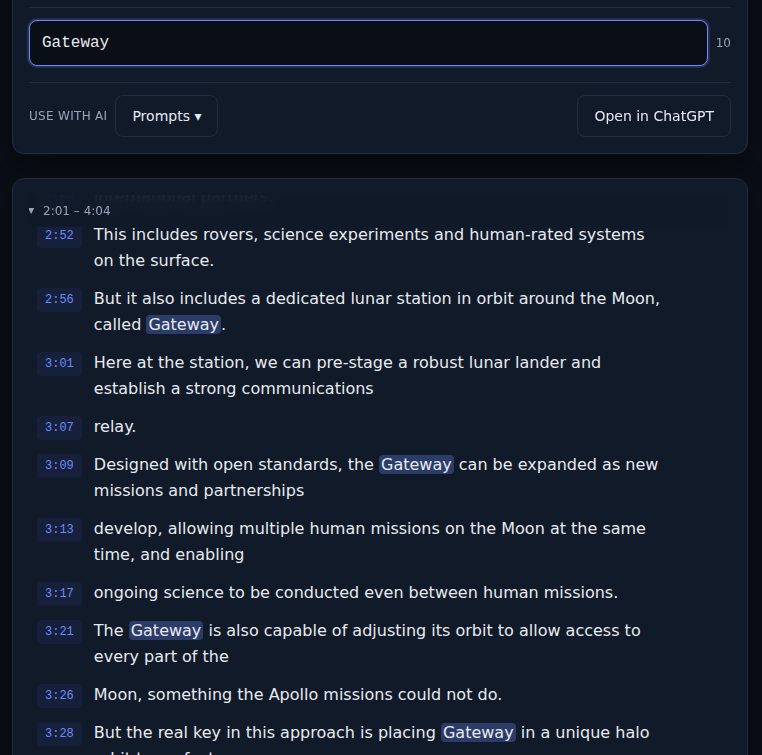
Paste the video link on the LinkTranscript home page. When the transcript loads, there is a search box under the toolbar labeled "Search within transcript." Type a word and every occurrence is highlighted, with a count at the right end of the box. Click the timestamp on the line you want and the embedded player jumps to that second.
That is the whole technique. The rest of this guide is about choosing the word, because the search is exact and captions are not.
A worked example
The example page carries NASA's "How We Are Going to the Moon," a five-minute video with 863 words of captions. Say you want the part where the narrator explains the lunar station. Type "Gateway" and the count reads 10. The first hit, at 2:56, is the definition ("a dedicated lunar station in orbit around the Moon, called Gateway"); the rest describe what it does. Click 2:56 and the player starts there. Type "halo" instead and there is exactly one hit, at 3:28, which is the orbit explanation. Total time, about eight seconds, most of it typing.
Pick a word the captions will have spelled right
Search matches text, so a term that the caption track spelled differently will not be found. Automatic captions are fine with common words and unreliable with names, brands, and numbers. So search for the ordinary word next to the thing you remember, rather than the thing itself.
Looking for the moment a guest mentions a company with an unusual name? Automatic captions may have it as two ordinary words that sound alike. Search "camera" or "startup" or whatever the company does, and read the hits. Looking for a figure? Search "million" or "percent." Looking for the story about the job? Search "quit," then "left," then "resign," which between them cover most of the ways people say it.
Two more habits. Search a stem rather than a full word: "negotiat" matches negotiate, negotiated, and negotiation in one pass. And for a phrase, search its least common word. "Actually" appears two hundred times in an hour of conversation; "warranty" appears once, right where you need it.
Read around the hit before you jump
The count tells you how many times the word occurs. When it is more than a handful, read the highlighted lines in order before clicking any timestamp. Transcript lines are short, so the line and its neighbors usually tell you which hit is the one. Then click that timestamp, listen for twenty seconds, and you are done.
If the count is zero, the word is not in the captions in that spelling. Try a synonym, a stem, or a nearby word before assuming the moment is not in the video. Names are the usual casualty, because automatic captions spell them by sound, so search for an ordinary word that was said near the name instead.
Copy the line, or share the moment
Each transcript line has a copy control that appears when you hover over it, so you can take the exact sentence with its timestamp for a note or a message. Select several lines with the mouse and the "Copy selected text" button in the toolbar takes the whole passage.
To send someone straight to the moment on YouTube, use the timestamp. A YouTube link with t= and a number of seconds starts the video there. For a line at 1:02:15, that is 3,735 seconds, so the link is the video URL with ?t=3735 on the end (or &t=3735 if the URL already contains a question mark). YouTube also accepts the 1h2m15s form. Right-clicking the player on YouTube and choosing "Copy video URL at current time" does the same thing once you have jumped there.
Long videos and repeat visits
The transcript page handles multi-hour videos; a three-hour podcast is about 30,000 words and loads in one piece. Searching it is instant, because the search runs in your browser after the transcript arrives.
If you come back to the same video, it loads from the cache and costs nothing, so there is no reason to save a copy only to search it again later. If you do want a local copy, the TXT export with timestamps on gives you a file you can search in any text editor, and each line still carries its time so you can find the moment on YouTube afterward.
When the transcript search will not help
Search cannot find what was never said. A chart on a slide, a product on the desk, a title card, a joke that was entirely visual: none of that is in the caption track. For those, YouTube's own chapter markers (when the creator added them) and the scrub-bar thumbnails are still the tools. And a video with no captions has no transcript to search; the guide on what to do when a video has no transcript covers the options.
For everything that was said out loud, the search box beats any amount of scrubbing. Paste the link, type the plainest word you can think of, click the timestamp.
Try it on a video
Paste a YouTube link and get a clean, exportable transcript in seconds.